
6. Using your phone
Typing long links with the remote is tedious. Pixetia lets you send them from your phone by scanning a QR code.
It’s used for:
- the link to a Google Photos album;
- the link to a Google Drive folder;
- connecting Dropbox;
- connecting the AI assistant.
(OneDrive uses a similar system, but with Microsoft’s page: see OneDrive.)
Before you start
Your phone must be on the same Wi-Fi as the TV
If your phone is using mobile data or another Wi-Fi network, the page won’t open.
Step by step
- On the TV, press the phone button, for example Send the link from your phone. A QR code appears with the instructions.
- On your phone, open the camera and point it at the QR code. Tap the notice that appears to open the page. (If your camera doesn’t read QR codes, type the address shown below the code into your phone’s browser.)
- A Pixetia page opens on your phone. Paste the link (or the code) into the box.
- Tap Send to TV.
- When “Done: … added to Pixetia. You can close this page now.” appears, you’re done. The TV carries on by itself.
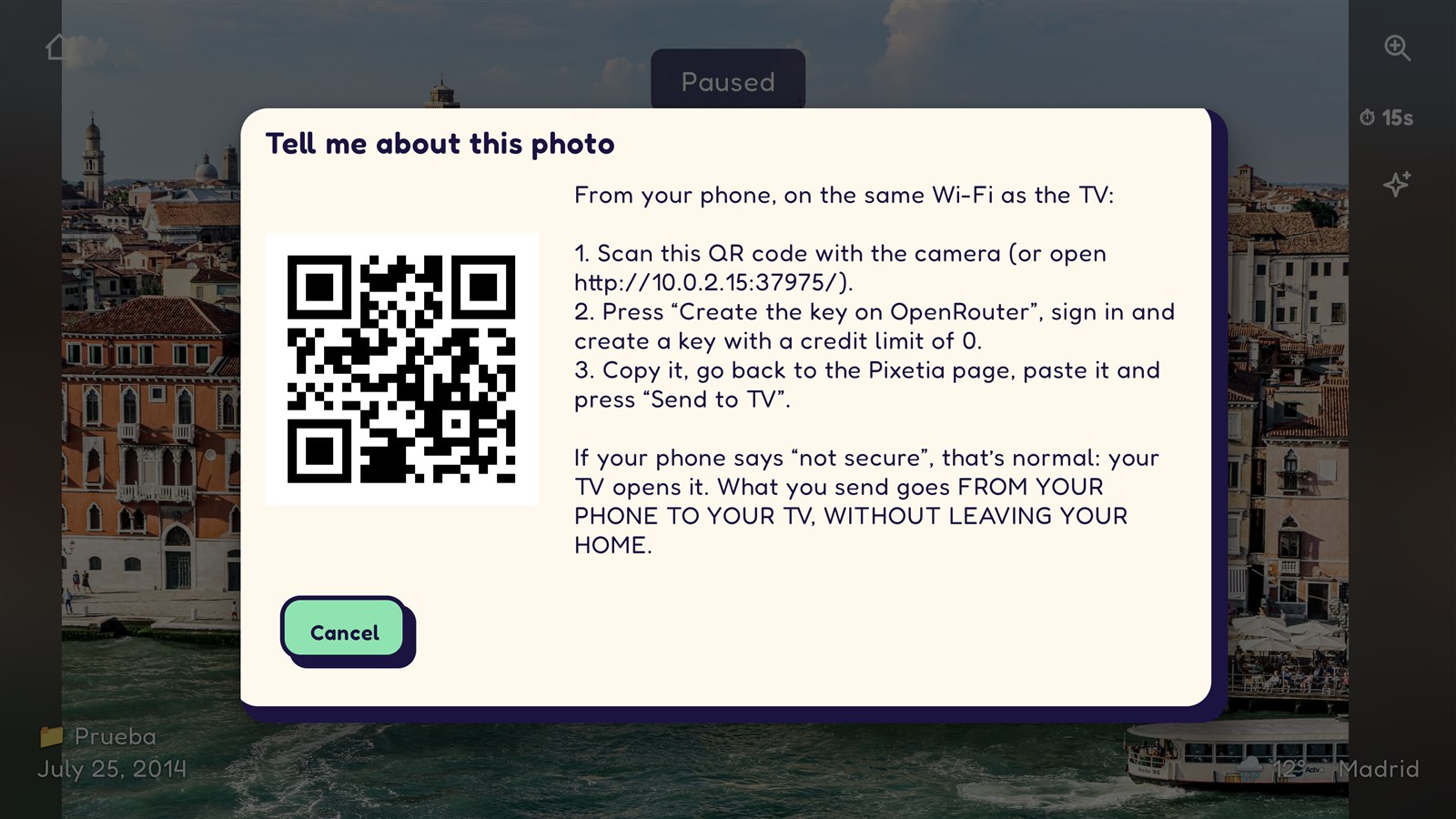
“Your connection is not secure”: that’s normal
Your phone’s browser may warn you that the page is not secure. That’s fine:
- That page is served by your own TV, not by a website on the internet.
- What you type travels from your phone to your TV without leaving your home. It doesn’t go through the internet or through any Pixetia server.
- The warning appears because a TV can’t have the security certificate that internet websites have.
If something goes wrong
- The page doesn’t load: check that your phone is on the same Wi-Fi as the TV and that the QR window is still open on the TV.
- An error appears when sending: the page explains why (for example, that the album isn’t shared). Fix it and tap Send to TV again; you don’t need to scan the QR code again.