
10. Background music
Pixetia can play an internet radio station of the style you like while the photos play.
The stations are public radio stations from all over the world that broadcast online. Pixetia has no music of its own: it chooses a station that matches what you ask for.
Turning the music on
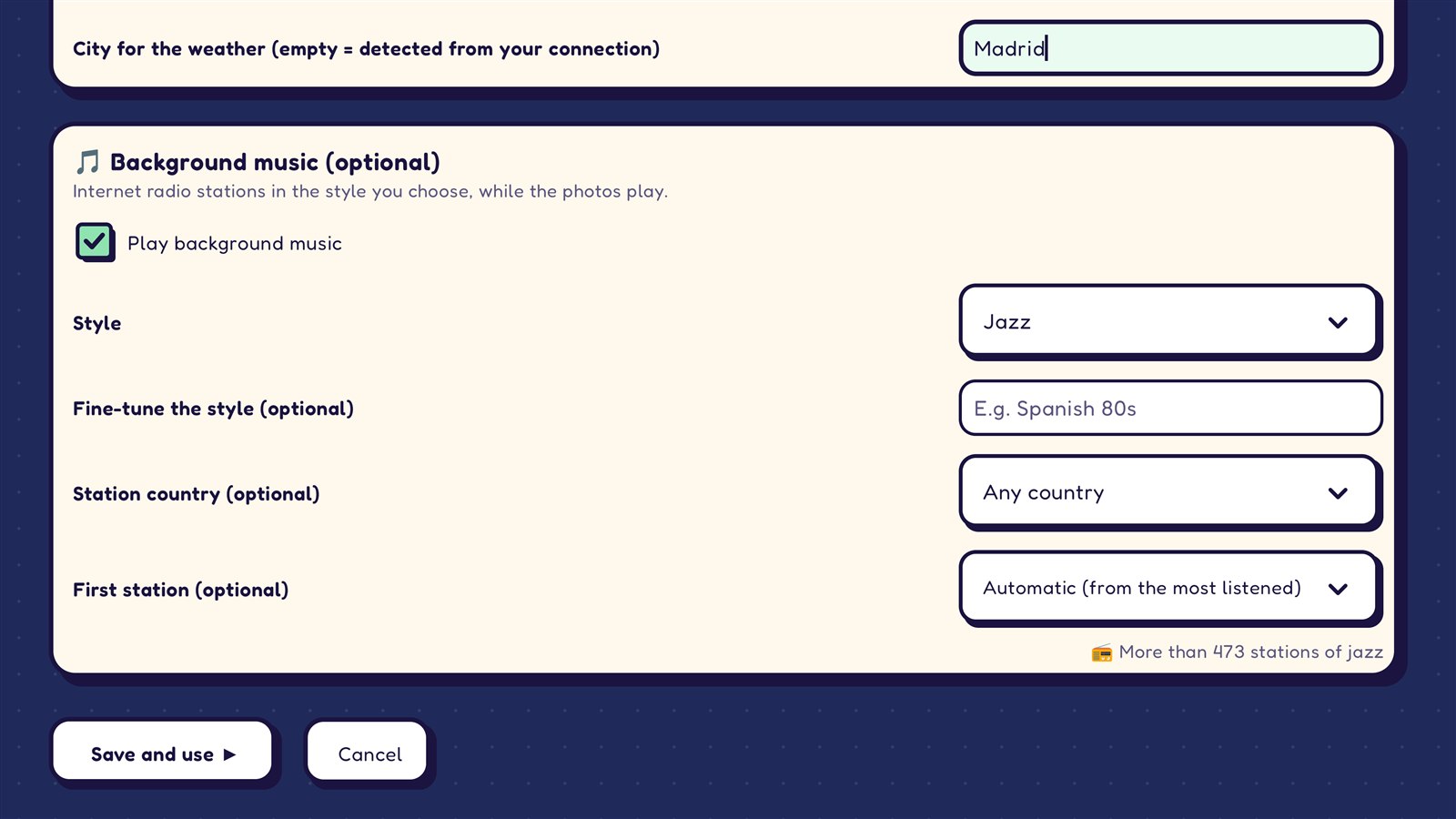
- Edit the album (Edit ✏ in My albums) and go down to “🎵 Background music (optional)”.
- Check “Play background music”. The options appear.
- Choose the Style. By default it’s “Any (most listened)”, which plays popular music stations and leaves out news and talk stations.
- If you like, fill in the options below (see the next section).
- Press Save or Save and view ▶.
Below the options, Pixetia tells you how many stations it has found, for example “📻 24 stations of Jazz”.
Fine-tuning the search
| Option | What it’s for |
|---|---|
| Style | Pop, Rock, Jazz, Classical, Chill out, Soundtracks… If yours isn’t there, choose “Other: I’ll type it” and type it (for example “flamenco” or “bossa nova”). |
| Fine-tune the style (optional) | Words to narrow it down, for example “80s british”. |
| Station country (optional) | Only stations from that country. Next to each country you can see how many there are. With “Any country” it searches the whole world. |
| First station (optional) | The station to start with. With “Automatic (from the most listened)” Pixetia chooses. |
If no station matches everything at once, Pixetia looks for similar ones and tells you: “None match all of that at once. … similar ones will play”.
During the slideshow
- When it starts playing, the station name appears at the bottom, for example “♪ Sample Radio”.
- You change the volume with the TV remote, as usual.
- To change the station: press ↑ or ↓, choose the music icon 🎵 and press OK. “♪ Changing station…” appears. You can keep pressing OK until you find one you like.
- If a station stops working, Pixetia switches to another one by itself.
Music only plays in the normal slideshow
When Pixetia works as a screensaver it doesn’t play music, so as not to surprise anyone while the TV is idle.
If there’s no sound
- Check that the TV volume isn’t turned down or muted.
- If “No working radio station of that style was found right now” appears, try another style or remove the country.
- If “No stations found…” appears when choosing the options, try other words or check your internet connection.