
11. Screensaver
Pixetia can work as a screensaver: when the TV hasn’t been used for a while, your photos start showing on their own.
Which album is shown
The active album is shown, the one with the ACTIVE · SCREENSAVER label in My albums. To change it, press Watch ▶ on another album.
The album’s same options are used (time between photos, transitions, date, place, weather…), but without music.
Choosing Pixetia as the screensaver
The menus vary a little depending on the TV brand and version. It’s usually like this:
- Open the TV Settings (the gear icon ⚙).
- Go into Device Preferences (on some TVs, System).
- Go into Screen saver (on some TVs it’s called Daydream or Ambient mode).
- Press Screen saver again and choose Pixetia from the list.
- In When to start, choose how long the TV must go unused, for example 15 minutes.
Many TVs have a Start now option to try it straight away.
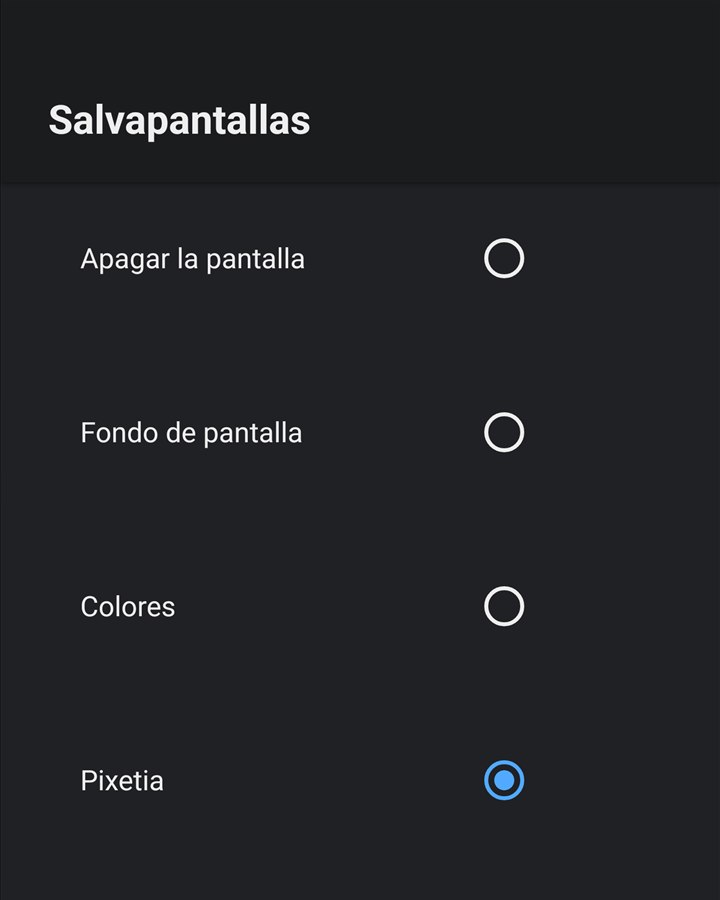
If Pixetia isn’t in the list
On some Google TV devices, the settings only let you choose Google’s ambient mode and don’t show other screensavers. In that case Pixetia can’t be chosen from the TV menu. You can always open Pixetia and leave the slideshow running.
Leaving the screensaver
Press any key on the remote. The TV goes back to what you were doing.
If a message appears instead of photos
- “Open Pixetia and add an album to use it as a screensaver.”: you don’t have any album yet. Create one (Adding an album).
- If an error appears (for example, the computer with the photos is switched off), Pixetia tries again on its own: you’ll see a countdown, “Retrying in 30 s…”.